Administrators in mojoPortal content management system can create new user and manage existing users from the member list page. You will see a "Manage User" link next to existing users allowing you to manage the profile and role membership. There is also an add user link for creating new users.
User Password Settings
All of the mojoPortal content management system user password settings are located in the Administration menu, under Site Settings, Security tab.
When running a public web site, you should always keep in mind that no matter how strong your security measures, your database information might be compromised one day. If not by external hackers, then by malicious insiders. If that happens, all that will stand between the attackers and your sensitive data is how it is stored.
There are three choices of password security in the database:
- Clear text in db - This is the most convenient, but it leaves your site and users vulnerable. Not recommended.
- Encrypted in db - Better, but can still be compromised if someone gets hold of the encryption key (hence the importance of changing your Machine Key), and even without the key, the passwords can be decrypted using brute-force dictionary and targeted attacks. Only recommended if you have to be able to decrypt your passwords for compatibility with some other system.
- Hashed in db/Cannot be decrypted - This is the recommended setting and offers the best security. A one-way hash, as its name implies, cannot be reversed. There is no way to reconstruct passwords, even with full database access.
If you are using the internal database authentication for login, or are using LDAP fallback authentication, There are two options for password recovery:
- Allow Password Retrieval - This option is available if you are using clear text or encrypted passwords, but not for hashed passwords. It will send the user their current password through email, and so is the least secure option.
- Allow Password Recovery - This option is recommended for best security. The user will be assigned a new random password, and that will be emailed. In order to use this regardless of your password storage method, be sure to uncheck the Allow Password Retrieval option as well. If both are checked, mojoPortal will first use retrieval if the password storage mode allows it.
If you check the option Require Password Change After Recovery/Reset, then when the user logs back in after the password email, they will be required to change their password. This is recommended.
In addition to strong password storage, and recovery options, you can apply extra levels of security. SSL encryption is very important for all sensitive traffic. The Password Strength Regular Expression setting can be used to ensure that users choose harder-to-guess passwords (not necessarily harder-to-crack passwords, see below).
A Note About Passwords
For a very long time now we in the IT world have preached that passwords should contain a mix of character types (alphabet (lower and uppercase), number, symbol) and this led to the use of character replacement (a=@, e=3, s=5, s=$, r=7, etc...). So we ended up with passwords like "S3rve7$pe3k!", which satisfies all of generally accepted and preached characteristics of a "strong" password. It's greater than 8 characters (this keeps going up as bots get more sophisticated), has both lowercase and uppercase alphabet characters, numbers, and symbols. The problem here is that while this password looks secure and it is to the human eye (even if a human sees it for second, chances are they will not be able to read it and remember it), bots are not humans and humans are well, human. So, humans being human and all, the vast majority will have a hard time remembering all of those replacement characters. Bots being mathematical creatures have an easier time cracking this supposed "secure" password than humans to remembering it. The answer to this problem has been right in front of us for decades but we've been too smart to see it. Phrases that are easy for humans to remember are not necessarily easy for bots to crack because humans are not mathematical creatures (that whole emotion thing). Okay, so what? Humans are emotional beings, what does that have to do with password strength? A lot actually, one emotion that all humans (well, most, some are just drab all the time) really like to feel is happiness. A way to bring about happiness is laughter (at least for a moment, if you're looking for long-term happiness, check this out). "TheSplotchesSoldier8" is nonsense, right? Yep, it is. It's also a very strong password. Granted, if a random person were to see this written on a piece of paper, they would probably remember it and then the password isn't secure anymore. But, is that really where the problem lies with password security? No, it's not. The problem with password security is that we've been preaching the false gospel of "l33tsp3@k" and regularly changing passwords for so long that the average person has given up. He uses the same password or a few variations thereof for everything. Secure passwords start with randomness, not random characters but random words. Random characters work but it too often leads to people not remembering the silly password so they write it on a sticky note under their keyboard or tell their browser to remember it for them, where it is stored in a reversible encryption on some "secure" server so they can retrieve it whenever they want. Random words, not chosen by the user but a phrase generator, leads to the use of more secure passwords. If you embrace this method, you're sure to run into folks who think you're insane because (____) <- you can fill in that blank spot with whatever thing they throw at you. The old solution of requiring complex passwords was settled on because we could use a computer to determine if you had entered enough characters of varying types to be a secure password, nevermind the fact that you could have entered "P@ssw0rd1".
So, what should you do about this? Start explaining this to your friends and relatives. Give them a link to a good password generator and tell them to use it when coming up with new passwords. Have them pick only those passwords that are funny so they'll have a better chance remembering it. Make sure they understand that if a randomly generated password includes the name of their dog or their firstborn, they shouldn't use it.
For further reading on this topic, check out the below amazing infographic and for a long, down the rabbit-hole yet very interesting and nerdy explanation, check out this CMU paper.
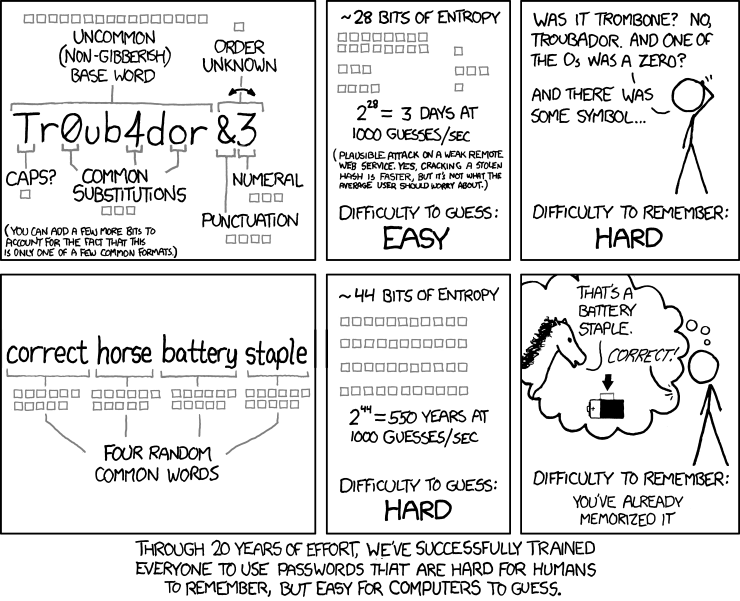 Image © https://www.xkcd.com/936/
Last Modified by Joe Davis on Oct 23, 2018